
Most people don’t think about it, but clicking on a website’s logo is one of the easiest ways to get back to the homepage. This simple action has become a standard part of how we use the web. Whether you’re shopping, reading, or exploring, you expect the logo to work like a “reset” button that brings you back to the starting point.
This habit is so common that when the logo doesn’t lead home, it feels confusing. Even frustrating. Especially if you’re lost, stuck, or just want to start over, not having a quick way back adds extra effort. And on today’s fast-moving websites, small problems like this can pile up and push users away.
That’s why linking the site logo to the homepage isn’t just a nice-to-have. It’s a basic rule of good web design. In this article, we’ll explore why this small detail matters so much, what research and user behavior tell us, and how it affects navigation, trust, and the overall user experience.
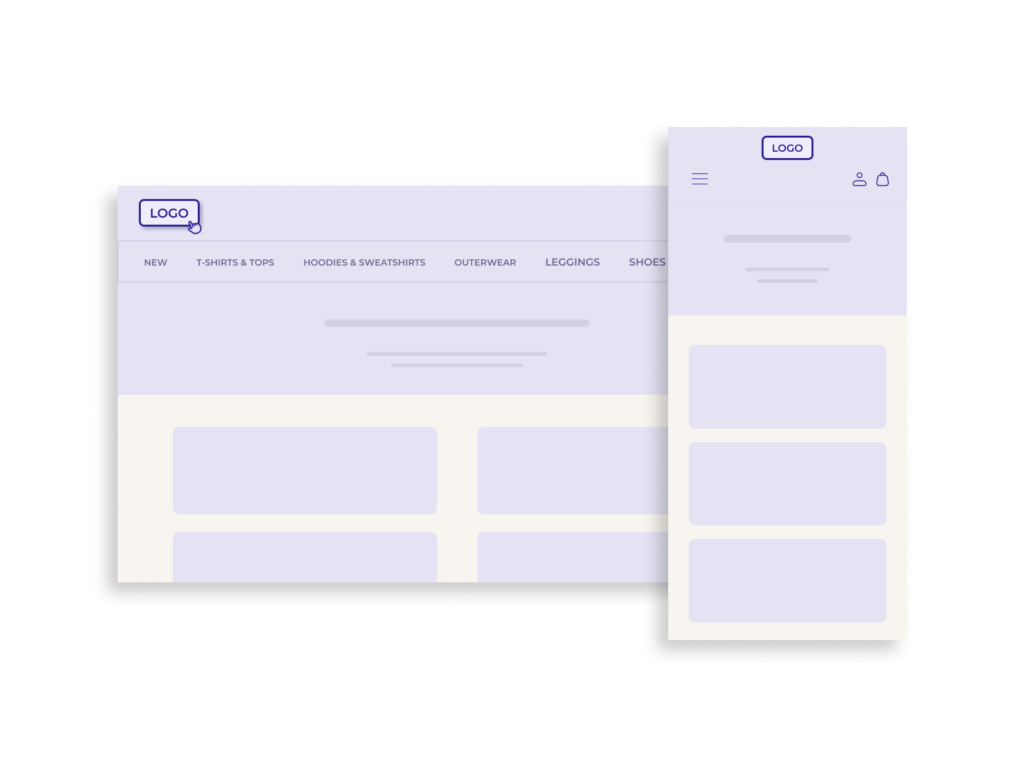
The Logo-Homepage Link as a Mental Shortcut
People rely on patterns when they use websites. Over time, they build expectations about how things should work, such as where to find a search bar, how filters behave, or what clicking the logo will do. These learned habits are part of what experts call a “mental model”: the internal map people use to guess how a system behaves.
In this mental model, the site logo equals the homepage. This idea is so strong that users don’t question it. They simply assume clicking the logo will bring them back to the main page. It’s not just a guess. It’s based on hundreds or even thousands of past experiences.
Breaking that pattern creates friction. If the logo doesn’t work as expected, users can feel confused or even tricked. They might stop and wonder what to do next, or leave the site altogether. Even a small disruption in navigation can lead to a drop in trust and satisfaction.
This is why it’s important to meet expectations when designing websites. Aligning with common patterns, like linking the logo to the homepage, reduces cognitive load and makes the experience feel smooth and predictable.
Friction, Disorientation, and the Need for an Escape Hatch
Not every website visit goes as planned. Sometimes users take a wrong turn, end up on a page that doesn’t help them, or get lost deep inside menus or filters. When that happens, they often look for a simple way to “reset” their experience. Something that brings them back to the starting line. The site logo is one of the most reliable tools for this.
When users feel stuck, clicking the logo is often their first move. It’s fast, familiar, and doesn’t require much thought. This quick escape lets them start fresh without needing to find a “Home” link in the menu or hit the back button multiple times.
This behavior is even more common on mobile devices, where navigation can feel tighter and more complex. On smaller screens, users scroll through long pages, drill into subcategories, or open multiple layers of filters. In these moments, tapping the logo is a quick and trusted way to reorient themselves.
If that escape isn’t there (if the logo doesn’t lead home), it adds frustration. Instead of helping the user regain control, the site creates another obstacle. And in an already difficult moment, that can be enough to make them leave entirely.
Linking the logo to the homepage gives users a sense of control. It’s a small touch, but one that helps reduce confusion and keep people moving forward.
Micro-Irritations Accumulate: The Cumulative Friction Principle
One small frustration might not seem like a big deal. But when a user runs into several small issues in a short time, those irritations add up. This idea is known as cumulative friction: the gradual buildup of minor usability problems that can lead to a major outcome: the user leaving the site.
For example, imagine a shopper who:
- Struggles to find a product using filters.
- Waits too long for a page to load.
- Clicks the site logo to start over… but nothing happens.
Each of these moments adds stress. And while the broken logo link may seem minor on its own, it could be the last straw. It’s one more sign that the site isn’t working the way users expect. In the digital world, that’s all it takes for someone to leave and possibly not return.
Good user experience is about reducing effort, not adding to it. That means removing friction wherever possible, especially in moments when users are trying to recover from a mistake or rethink their path. A clickable logo helps with that. It’s simple, fast, and proven to lower frustration.
Case Study: When the Logo‑Home Link Was Overlooked
While direct, detailed case studies specifically isolating the logo‑home link are rare, broader research shows concrete issues when familiar navigation conventions are broken.
One study of 478 websites (from “INC. 500” companies) found that only about 61% of sites had a clickable company logo leading back to the homepage. The consequence: many users may click the logo expecting a home return, and get no response, adding friction to the experience.
These findings underline a practical reality: deviating from the convention of linking the logo to the homepage creates measurable extra cognitive load, makes navigation less predictable, and raises the chance of user abandonment.
Mobile UX: Deep Navigation and the Need for Re‑orientation
Mobile websites often have more complex navigation than desktop versions, even though the screen is much smaller. Menus are hidden behind icons, pages stack on top of each other, and filters can take users several levels deep into the site. This makes it easy to lose track of where you are.
In these moments, users often look for a simple way to reorient themselves. The logo, placed at the top of the screen, is a clear and trusted way to do that. Tapping it gives users a fast way to “reset” their journey without needing to backtrack one screen at a time.
Without this option, mobile users can feel stuck. Swiping back or opening the menu may not always help, especially if the navigation isn’t clear or consistent. And with slower load times, smaller tap targets, and limited space, every extra action feels heavier on mobile than on desktop.
Adding a homepage link to the logo is a small design choice that helps prevent disorientation and keeps users in control, especially in the more limited and layered context of mobile browsing.
When a Logo-Link Isn’t Enough
Even though most users expect the logo to return them to the homepage, there are situations where this pattern alone doesn’t fully support navigation. The issue isn’t the logo itself; it’s that some users either don’t recognize it as a navigation element or need additional context to understand where they are within the website. On content-heavy websites, news portals, e-commerce stores with deep category trees, or platforms with multiple dashboards and account views, relying only on the logo can create uncertainty. Users who aren’t as digitally experienced may look for a literal “Home” link first, and if it isn’t visible, they can feel lost or stuck.
In these cases, the logo still plays an important role, but it works best when paired with a visible backup like a Home link or breadcrumbs. A dual-signal approach improves clarity for all user types, reduces wayfinding anxiety, and prevents unnecessary exits or refreshes.
In short: the logo is the primary anchor, but it shouldn’t always be the only one.
Implementation Guidelines
Adding a homepage link to your site’s logo is simple, but it should be done carefully to make sure it works well for all users, including those using assistive technology.
1. Make the Logo Clickable
Ensure the logo is wrapped in an anchor (<a>) tag that points to the homepage (e.g., <a href=”/”>). This should be consistent across all pages, including product, category, and checkout pages.
2. Place the Logo in a Standard Position
Keep the logo in the top-left corner of the page. This is where most users expect to find it, based on widespread web patterns. Avoid centering or hiding the logo on inner pages, especially on mobile.
3. Use Alt Text for Accessibility
Screen readers rely on alternative text to describe images. Use clear alt text like “Site Name logo — link to homepage” to help visually impaired users understand both the image and its function.
4. Ensure It’s Tappable on Mobile
Make sure the logo’s tap target is large enough. At least 44×44 pixels, according to accessibility guidelines. Avoid placing it too close to other clickable items, which can lead to accidental taps.
5. Test Behavior Across Templates
Inconsistent behavior across different templates (e.g., blog vs. store) can confuse users. Ensure the logo always leads to the same homepage URL, regardless of where the user is on the site.
6. Combine With a Visible “Home” Link
Although the logo serves as a shortcut, not all users know or expect that it’s clickable. Including a separate “Home” link in the navigation menu is recommended, especially for accessibility and older audiences.
Conclusion
Linking the site logo to the homepage may seem like a small design choice, but it plays a big role in how people navigate and feel about your site. It taps into strong user expectations, offers a reliable way to reset when things go wrong, and helps reduce frustration, especially on mobile or during complex browsing journeys.
Ignoring this convention risks confusing users and adding friction at critical moments. While most people may never mention it directly, its absence is often felt and remembered.
To ensure your website supports smooth navigation and builds user trust:
- Always link the logo to the homepage.
- Place it in a familiar position, usually the top-left.
- Make it accessible and consistent across devices and pages.
It’s a fast, easy win that makes the user experience better for everyone.